Totally Society – very special offers

Check out this special offer as seen in Totally Society (“The UK’s local celebrity magazine”):

John Lewis

Wow – I bet people have been flocking to Wycombe for the prospect of a free second coffee.

So how do you set about claiming this incredible offer?

The Totally Society Card is a privilege card that offers benefits to local customers. Hundreds of local businesses have joined the scheme and offer discounts and special offers to cardholders.

To become a Totally cardholder there is a one-off enrolment fee of just £25.

Somehow I don’t think Martin Lewis will be interested in this one.

AirPort Extreme Base Station & O2 Home Broadband

As a satisfied owner of a shiny new Apple Airport Extreme (Simultaneous Dual-Band) Base Station, I am sharing my configuration and observations for interworking with O2 Home Broadband (not the O2 Home Access product).

The new AEBS can operate on both the 2.4GHz and 5GHz bands for 802.11n WiFi and the ability to migrate wireless traffic onto the less congested 5GHz band will provide significant improvements to data throughput.

For this (and many other) reasons it is advantageous to use the AEBS to manage your local network for WiFi and firewalling, in preference to the O2 supplied Thomson router. The AEBS is not an ADSL modem however and so you will still need your O2 router to connect to the BT network.

O2 Broadband Router Settings

Login to your O2 Wireless router and re-configure the device as an ethernet bridge:

O2 wireless box III > Configuration > Set Up > Bridge

When the router has rebooted, login again (http://192.168.1.254/) and disable the WiFi network interface:

Home Network > Interfaces > WLAN > Configure > Interface Enabled: No
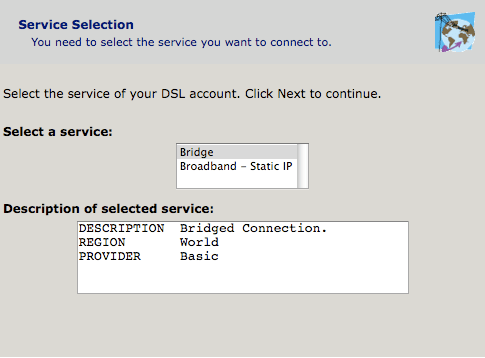
Now connect your AEBS WAN ethernet port to an ethernet port on the O2 Home Broadband router.

AirPort Extreme Settings

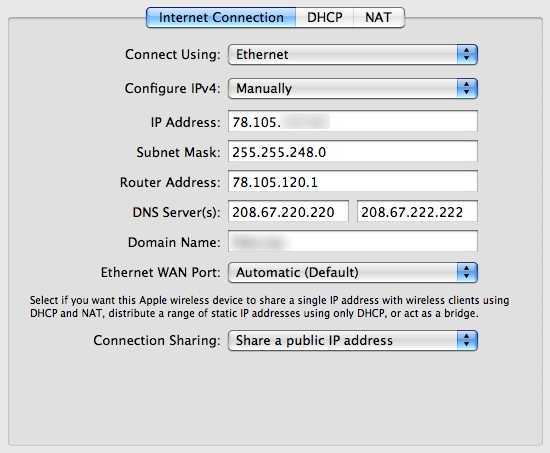
  • Internet | Internet Connection

Connect Using: Ethernet

Configure IPv4: Manually  (for static IP)

(For dynamic IP set ‘Configure IPv4: Using DHCP’ and ignore the next three lines)

IP Address: <provided by O2>

Subnet Mask: <provided by O2>

Router Address: <provided by O2>

DNS Server(s): 208.67.220.220 & 208.67.222.222 (these are the OpenDNS servers)

Domain Name: <your domain name>

Ethernet WAN Port: Automatic

Connection Sharing: Share a public IP address
  • Internet | DHCP

Select an appropriate DHCP range for your network, or simply replicate the previous O2 Home Broadband router settings:

DHCP Beginning Address: 192.168.1.64

DHCP Ending Address: 192.168.1.253

DHCP Lease: 24 hours

  • Internet | NAT

Enable NAT Port Mapping Protocol

Local network

When you choose to ‘Share a public IP address’ and create a DHCP network from the RFC 1918 private network range, the AirPort will automatically reserve the first available IP address in the network range for itself.

e.g. if you are using 192.168.1.64 to 192.168.1.253, the internal network interface of the AEBS will be assigned the IP address 192.168.1.1. This is also the default route and domain name server for clients on your internal network.

AirDisk Sharing

From experimentation I have determined that sharing a connected USB hard disk via MobileMe only works if you configure your AEBS in the network configuration described above. The disk will not be accessible outside of your local network if your O2 broadband router is configured with your external IP address.

It is also necessary to activate ‘Back to My Mac’ on the machine that you are accessing from, even if you aren’t going to access this machine remotely.

System Preferences > MobileMe > Back to My Mac > Start

Remote Management

When signed into MobileMe from your Mac and with ‘Back to My Mac’ enabled, the Airport Utility software will discover remote AirPort devices signed into the same MobileMe account. It will allow you to select and configure the device in the usual way, just like being on the local network.

BT eFrame 1000 dissected – part 1

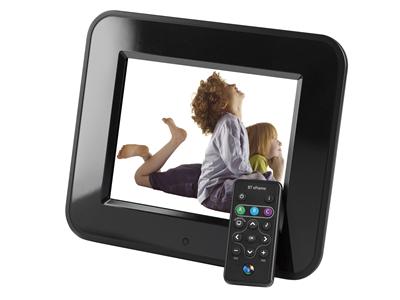
Having disposed of my Philips photo frame, I have purchased a BT eFrame 1000 wireless 8″ digital photo frame from dabs.com – for the remarkable price of £63.60.

The photo frame supports 802.11g Wi-Fi for file transfer which I am keen to give a try. As usual, the supplied management software will only run on Windows platforms (I tried Crossover on the Mac, but it doesn’t quite work). I sent a speculative email to the BT Product Helpdesk to enquire about the availability of technical specifications for the file transfer mechanism, however I have not received a response.

I then discovered from the CE Declaration of Conformity that the device is actually manufactured by Quanta Microsystems, Inc (QMI) and badged as BT. I read somewhere that QMI’s vanilla device supports the FrameChannel service but this feature has sadly been removed from the BT firmware. In an attempt to get my hands on the vanilla firmware I found a contact at QMI and pestered them for more information. They are staying tight-lipped and won’t divulge anything useful, so I am stuck without a solution for Mac OS or Linux.

Undeterred I am going to do it the hard way and embark on a mission to reverse engineer the proprietary protocols that control this device and hopefully open-up the full potential for non-Windoze users.

Wish me luck!

Why I won't buy Philips again

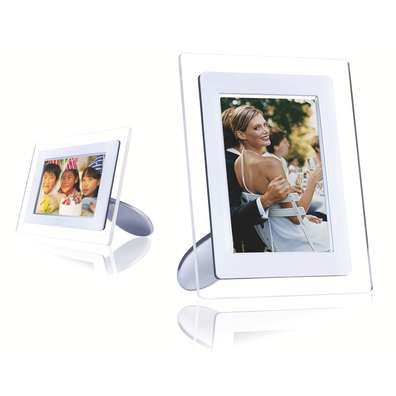
In early 2006 I purchased a Philips 7FF1AW digital photo frame. It worked perfectly for a couple of years, but eventually I wanted to use a larger capacity 2GB SD card and so I checked the Philips support site to see if this was possible.

7FF1AW

The firmware on my photo frame was A1.35 and according to Philips’ release notes an update to version A1.51 would provide the following improvements:

  • Extend the SD card support from 1GB to 2GB
  • Increasing maximum photos support number from 4096 to 10240

This was exactly what I needed and so I eagerly downloaded the firmware upgrade tool for Windows. I followed the upgrade instructions to the letter, but at the end of the upgrade process my photo frame simply switched itself off and would not switch back on again. No amount of pressing the reset button or the on/off switch would bring it back to life, so I called the Philips consumer care line.

The care agent listened to my description of the problem and quickly concluded that my photo frame was indeed dead. What could I do about this? “Nothing sir” was the response.

Even though I had diligently followed Philips’ own instructions and used their own software, because I had accepted their Software End User License Agreement (EULA) when I downloaded the firmware upgrade software from their web site, it was apparently all my own fault.

As my 7FF1AW was no longer in warranty, they would not agree to repair it and would not offer a discount on a replacement product.

“All I can suggest sir, is that you purchase a new photo frame” was his closing advice.

I will be buying a new digital photo frame, but it sure as hell won’t be a Philips.

While writing this article I took the time to read through the EULA again, now IANAL but I swear this doesn’t absolve Philips of any liability for causing the untimely death of my digital photo frame.

According to the Philips EULA:

Philips provides the Software ‘as is’ and without any warranty except that the Software will perform substantially in accordance with the documentation accompanying the Software for a period of one year after your first download, installation or use of the Software, whichever occurs first.  Philips’ entire liability and your exclusive remedy for breach of this warranty shall be, at Philips’ option, either (i) return of the price paid by you for the Software (if any); or (b) repair or replacement of the Software that does not meet the warranty set forth herein and that is returned to Philips with a copy of your receipt.

It looks to me like Philips are liable to repair or replace the software on the device as it does not meet the warranty, i.e. it just doesn’t work. What do you think?