The upgrade to macOS 11 ‘Big Sur’ has been mostly successful for me, except that I can’t install drivers for my trusty old Dell C1760nw printer. After a bit of playing, I’ve found a way around this.
First off, it’s worth knowing that the Dell C1760nw colour laser printer is actually a rebadged version of the Xerox Phaser 6000B printer. The Xerox printer drivers are more recent than Dell’s, but sadly they still don’t support Big Sur. I have a solution however, if you’re comfortable with a bit of command line manipulation.
First download (but don’t install) the latest Phaser 6000 drivers from Xerox.
You should now have the file 6000_6010_Print_Installer_v2_6.dmg in Downloads.
Open a Terminal window and issue these commands:
hdiutil mount ~/Downloads/6000_6010_Print_Installer_v2_6.dmg
cp /Volumes/6010\ 6000\ Print\ Installer/6010\ 6000\ Installer.pkg /tmp
cd /tmp
pkgutil --expand-full 6010\ 6000\ Installer.pkg expanded
cd /tmp/expanded/installationfiles.pkg
sudo cp -a Payload/Library/* /Library
Now open Printers & Scanners in Mac System Preferences.
Add Printer and give the IP address of your Dell printer, selecting Line Printer Daemon (LPD) as the Protocol.
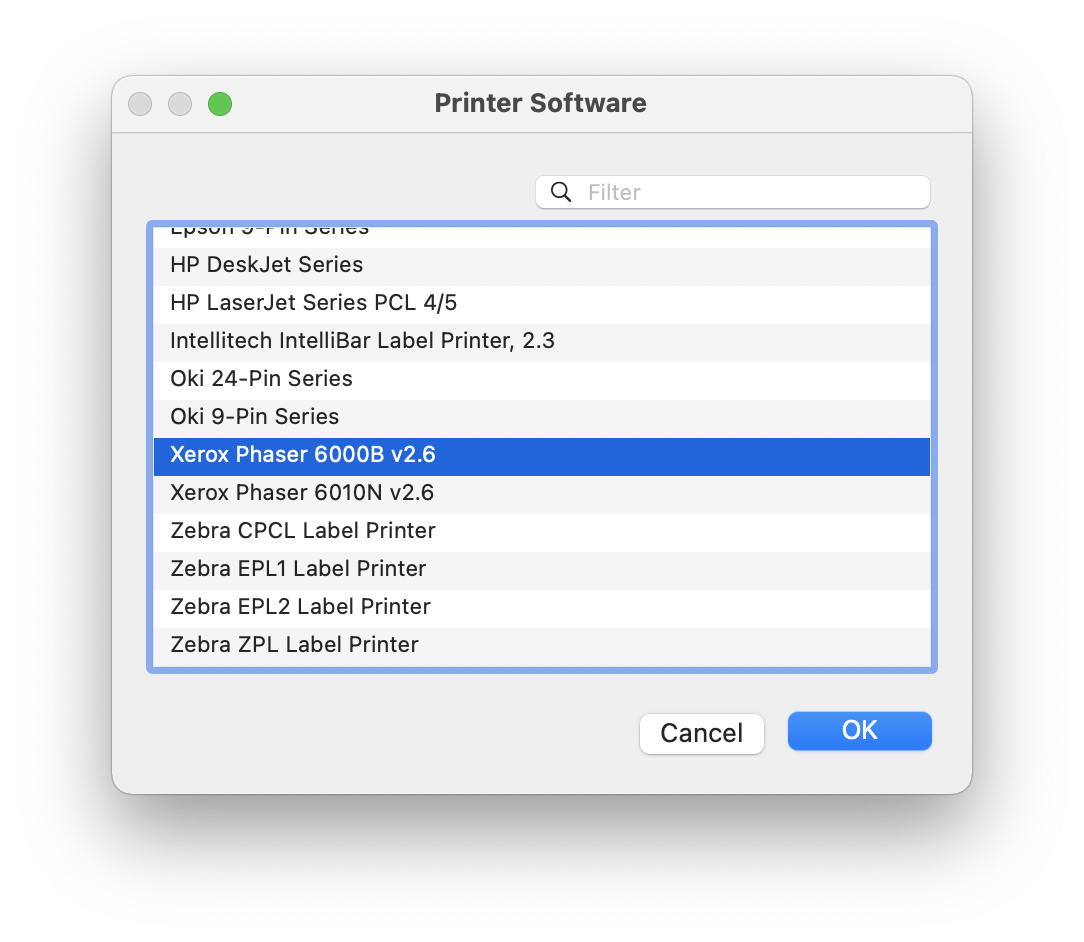
In the ‘Use’ drop-down menu at the bottom choose ‘Select software’ and choose ‘Xerox Phaser 6000B v2.6’
Next you should get an error message saying the printer software was installed incorrectly. Don’t be concerned, this is a good sign!
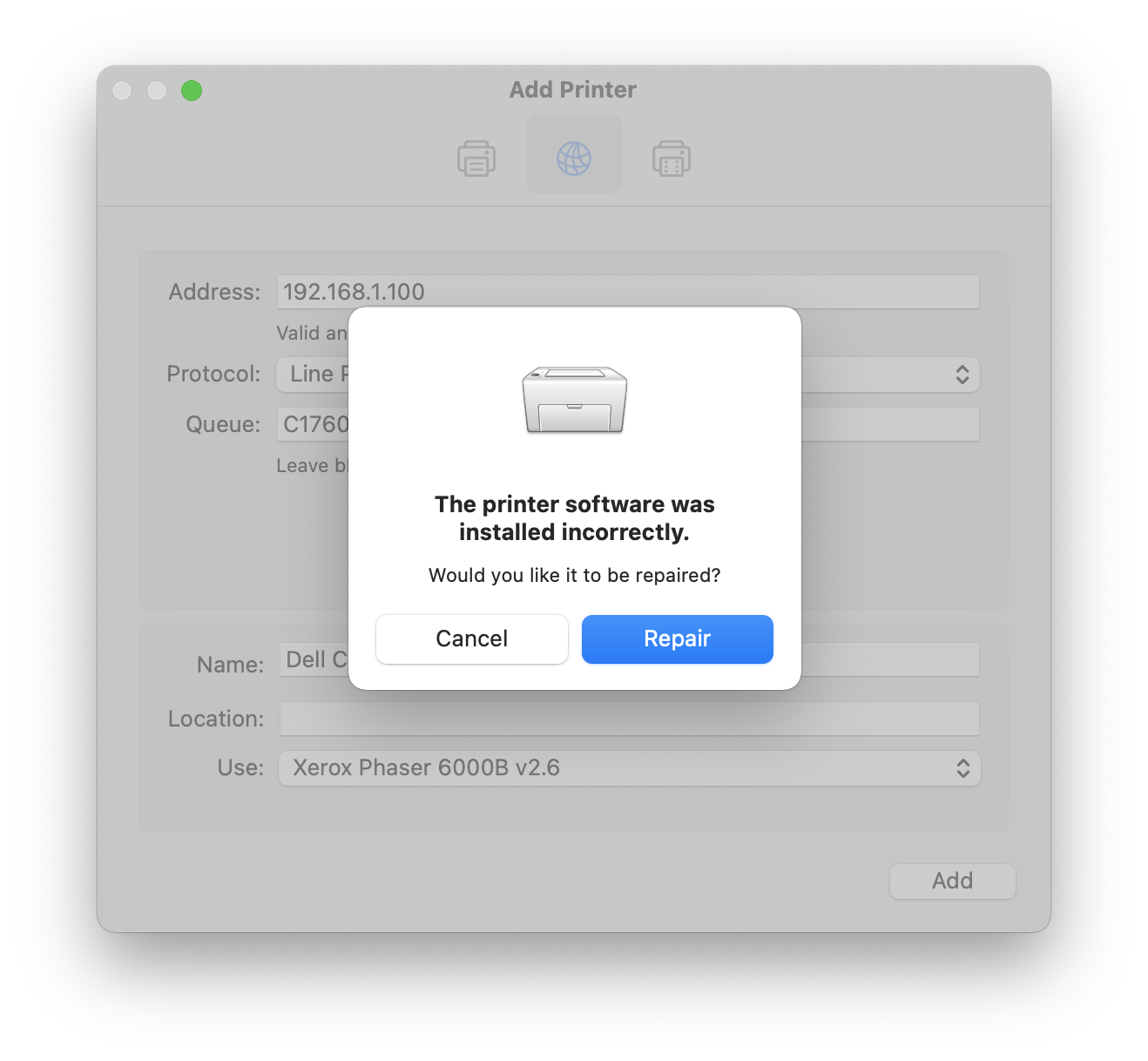
Select ‘Repair’ to let macOS do its magic and your Dell C1760nw printer will be ready for use.
December 2022 update: I have tested this same installation method on a fresh macOS Ventura build and confirm that it still works.
 WebDiary.com
Hi. I’m trying to make this work on the latest version of Big Sur. All looked like it will fly but when I went to printer, I got a FILTER FAILED message in the PRINT PROGRESS screen. **HELP*
FYI, the printer info showed that the IP addy is 0.0.0.0, which is what I used.
The IP address of your printer definitely won’t be 0.0.0.0 as that is a non-routable address which signifies your default route. It will likely be something like 192.168.x.x
I got an error, “Stopped. Filter failed.” Mac OS Ventura 13.6.4
Hi Thank you for this blog. I am not sure why Xerox provide these type of guides instead they force their customers to buy new printers (potentially). Anyway I got a Xerox Phaser 6125 and i would like to be able use this to install my Xerox 6125. Is this something you can provide guidence, maybe if you can write a set of instruction on how to do this on General basis.
Great – driver Xerox Phaser 6000B works for my printers Dell C1760NW and Dell 1350cnw as well for Wifi direct printers – tested with macOS 11 ‘Big Sur’ 🙂 Thx. I am curious also about solution for Net printers – so far I have both printers through Synology router RT2600 shared as Net printers – macbook see both of printers through Bonjour correctly as Net printers and installation with Xerorx drivers was fine – but printing does NOT work as Net printers. pitty
I tried your method MANY times but still get nowhere. It fails because having done all your step. first, zHowever, one thing I didn’t do is “select Line Printer Daemon (LPD) as the Protocol.” That’s because it simply does not show up as I proceed through the Add Printer instruction you gave. Most important, when I scroll down to select the driver–I do not see the option of Xerox Phaser 6000B at all. There are other Xerox Phaser drivers listed, but none in the series off interest: 6010. Why not? And what’s the point of the downloading the latest Xerox driver (which does not work), and not installing it (it does always fail)? It’s not recognized in any of the Add Printer menus.
Any further help would be much appreciated!
David
In my instructions you’ll see that although you don’t use the Xerox Phaser Print Installer directly, the driver files are extracted and copied to the system location where they can be used in the printer setup. If you do not have the LPD option in the protocol drop-down then I’d suggest your MacOS may have other problems.
This is not working on Monterey. There seems to be a problem with the last command “cp -a Payload/Library /”, yielding “cp: setattrlist: /Library: Operation not permitted” even if using sudo.
To the question why Xerox is not updating their drivers, of course the reason is revenue. In capitalism nature, human rights or animal rights always come last, if at all. The paradigm is of course increasing revenue, making more of it and devising stsrategies on how to increase the incresing of the increase. Everything else is greenwashing, blindness and idiocracy. Wake up!
I had problems with this on BigSur as well. Problem seemed to be that macOS doesn’t like that you do things in the root directory. I changed the command to:
sudo cp -a Payload/Library/* /Library
which worked fine for me.
Many thanks for solving that, I have updated the original instructions to incorporate your suggestion.
Thank you for providing this simple solution. Worked like a charm on my Dell C1760nw printer running MacOs Monterey 12.3.1
Wow! this even worked with OS Monterey 12.3. USB connected! Thank you so much! this means I get to continue to use my Phaser 6100N
Worked on the latest version of Ventura, everything else I tried fail. You’re a lifesaver!
Much thanks! Worked over USB in 13.2.1 (M2 Mac mini)
Thank you !!! I am using Monterey and this worked perfectly. Really appreciate you figuring this out. Awesome.
Anyone get this working on Ventura 13.4? I run all the commands and get the message about repairing the driver but get a Filter Failed message in the print queue. I know I have the IP address of the printer correct.
I’m having same issue. Did you ever find a solution?
This worked flawlessly on Sonoma. Thanks for publishing this!!
Works with Sonoma! Thanks!!!!
Hi, All the steps worked for except the last command cp -a Payload asking me for password. I am not sure what password to use? Can you suggest? Thanks
Sv
The copy command uses ‘sudo’ which is a method of elevating your privileges. The password is that of your macOS user account, i.e. the identity you login as.
Yes, I was able to get it working. I realized I have to use my password. Highly appreciate your prompt response too. Instructions you provided were flawless and all worked like a charm. Thank You!
This worked perfectly on my MacBook Pro (M1 Pro) on Sonoma 14.1.1. I thought resetting the printer to factory settings would do the trick, but this did! Thanks!
OMG!!!!! It Worked!!! Thank you so much! I had an old Dell 1350cnw with OSX 13 (Ventura), and searched the internet for something, anything, to get my printer working again. Nothing worked until I stubmled upon this thread.
Thank you so much!
I’m late to the game but I just got a Mac mini M4 (Sequoia 15.5) and trying to get it to work with my Dell C1760nw which still has plenty of ink and is in perfect working condition.
I followed the instructions and installed it using correct IP address. But when I try to print, I get Filter Failed message in the printer queue.
Does this mean I’m simply out of luck? Or is there something else I can do?
Any help would be greatly appreciated!!! 😊
I’m hoping I can help one person.
I followed the directions on here but unfortunately it did not work for me.
Then I decided to try and install the Dell driver from here: https://www.dell.com/support/kbdoc/en-us/000135885/how-to-install-and-configure-a-dell-print-driver-on-mac-os-x-2022-11-01-075016
and it just worked! Now my Dell C1760nw printer is working flawlessly.
Thank you so much for troubleshooting this and sharing your solution. Worked like a charm after much headache trying to troubleshoot it myself.