Insomniac Mac

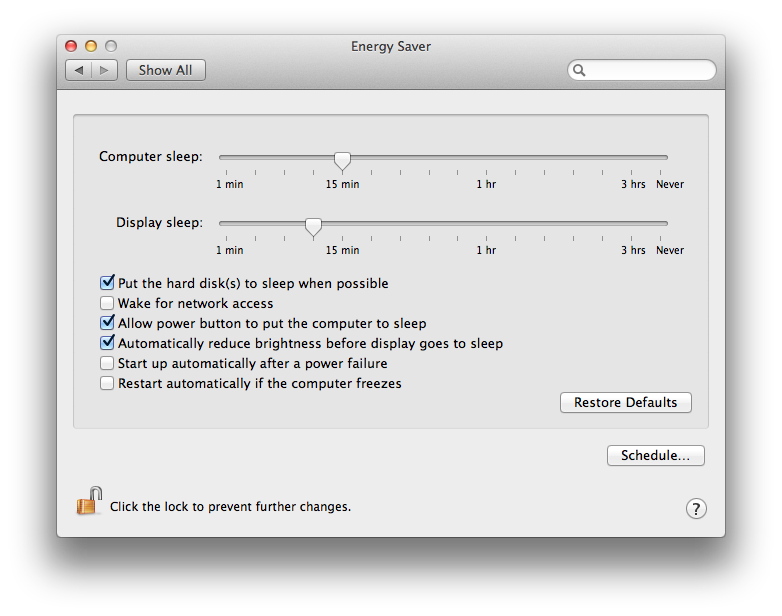
Since upgrading to Mac OS Lion I have been unable to persuade our ageing MacBook to go to sleep when it’s supposed to. The OS X Energy Saver preferences were set correctly, but it would not sleep of its own accord. Putting it to sleep manually worked, but the computer sleep idle timer was just ignored.

I put this down to a quirk of the older hardware and worked around it by defining a nightly sleep schedule, but when our shiny new iMac did exactly the same I knew there must be an application overriding the default behaviour.

Sure enough after a morning of trial and error and eliminating all the other options, I finally discovered the culprit to be Dropbox LAN sync.
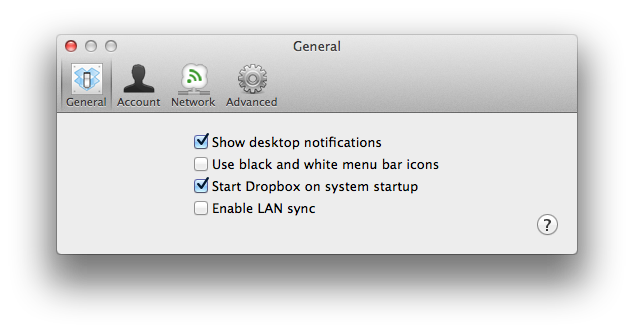
If Dropbox LAN sync is enabled then the Mac won’t put itself to sleep. The mystery is finally solved!

If you’ve disabled Dropbox LAN sync and your Mac is still powering on periodically (like every hour), then make sure you have also unchecked ‘Wake for network access’ in the Energy Saver preferences.

(Note: Mac OS X 10.7.3 & Dropbox client v1.2.52)

Remote SSH using Back To My Mac

One of the less well publicised features of Apple’s iCloud service is Back To My Mac.

This service provides a private IPv6 network which you can use to securely connect all your Mac hosts.

To use BTMM you will need to upgrade all your Macs to OS X Lion and sign them all into the same Apple iCloud account. You will also need your unique BTMM account number.

When you are signed into iCloud you can discover your BTMM account number as follows:

$ dns-sd -E
Looking for recommended registration domains:
Timestamp     Recommended Registration domain
12:07:46.550  Added     (More)               local
12:07:46.550  Added                          icloud.com
                                             - > btmm
                                             - - > members
                                             - - - > 123456789

The final line shows your individual BTMM account number.

For example, if you Computer Name (set in System Preferences > Sharing) is mymac and your BTMM account number is 123456789, then the fully qualified domain name of the host is mymac.123456789.members.btmm.icloud.com.

If you have spaces in your Computer Name then replace them with dashes, e.g. “My Mac” becomes the hostname my-mac.

To test connectivity to your remote host use ping6, e.g.

ping6 mymac.123456789.members.btmm.icloud.com

To list all the SSH enabled hosts on your domain:

dns-sd -B _ssh._tcp

You would SSH into your host using this command:

ssh -2 -6 username@mymac.123456789.members.btmm.icloud.com

Note that you will only be able to communicate with the other hosts on your iCloud private network if the Mac you are using is also signed into the same iCloud account.

You can also use an open SSH connection to access your non-Apple hosts on your internal network by using SSH port forwarding. This tunnels the destination traffic over the BTMM private network via your remote Mac.

For example, if you have a web server running on a host with the IP address 192.168.1.2 then you can use this SSH command to set-up a forwarded port:

ssh -2 -6 -L 8080:192.168.1.2:80 username@mymac.123456789.members.btmm.icloud.com

To access the remote host from your local machine you would go to http://127.0.0.1:8080/

Uninstall Symantec Enterprise Vault Client on Mac OS

Since Symantec doesn’t provide an uninstaller script for their Enterprise Vault Client, here’s how to remove it on Mac OS.

Open a Terminal window and execute these commands:

launchctl unload -D user /Library/LaunchAgents/com.symantec.ev.daemon.plist
sudo killall -m  "Enterprise Vault .*"
sudo rm -f /Library/LaunchAgents/com.symantec.ev.daemon.plist
sudo rm -rf "/Library/PreferencePanes/Enterprise Vault.prefPane"
sudo rm -rf "/Library/Application Support/Symantec Enterprise Vault"
rm -rf "~/Library/Application Support/Symantec Enterprise Vault"

Dropbox & EncFS on OS X Lion

I previously wrote about a method for creating a super-secure filesystem using Dropbox’s cloud storage.

After updating to Mac OS Lion I struggled to get the MacFusion GUI to work and so I wrote an application to automate the mounting and unmounting of the EncFS filesystem.

I also took the opportunity to switch from the now abandoned MacFUSE to Fuse4X, which is a properly maintained fork of MacFUSE started in June 2011.

The install procedure is much simpler than before, you install Fuse4X and EncFS, but instead of using the MacFusion GUI you just call my script instead.

To the instructions!

First download and install Fuse4X and a version of EncFS which uses the Fuse4X APIs. Thanks to Simone Lehmann for providing an EncFS Mac installer at http://www.lisanet.de/?p=128 (also mirrored here).

To create a new encrypted volume (stored locally at first to prevent the EncFS key from being synchronised with Dropbox):

encfs ~/Desktop/_Encrypted ~/Documents/_DropSec

Answer ‘yes’ when prompted to create the new folders and choose ‘p’ for pre-configured paranoia mode (256-bit AES encryption). Enter a secure EncFS password when prompted and you’re done.

Now the filesystem has been created we can deal with securing the key.

umount ~/Documents/_DropSec
mkdir ~/.keys
mv ~/Desktop/_Encrypted/.encfs6.xml ~/.keys/dropsec.xml

The commands above move your key from the EncFS filesystem into a hidden folder in your (local) home directory

Now move the entire ~/Desktop/_Encrypted folder (minus your key) into your Dropbox:

mv ~/Desktop/_Encrypted ~/Dropbox/

Finally download my DropSec application and copy it to your Applications folder.

The first time you run DropSec it will prompt you for your EncFS password which it stores in your local login keychain. The password must match the secure password you set in a previous step.

To mount or unmount the encrypted filesystem simply run the DropSec app. For convenience copy it to your Mac OS Dock for quick access.

Adobe retires Flash for mobiles

In early 2010 Apple announced the eagerly anticipated iPad and iPhone 4. They were hugely successful product launches, but at the same time Apple also came under increasing pressure from customers and developers to support Adobe Flash on their shiny new iOS devices.

In reaction to the criticism Steve Jobs delivered a scathing personal attack on Adobe Flash in an Apple article entitled “Thoughts on Flash“.

Jobs began by saying he “wanted to jot down some of our thoughts on Adobe’s Flash products so that customers and critics may better understand why we do not allow Flash on iPhones, iPods and iPads“.

In his critique Jobs went on to detail six main reasons why Apple was so staunchly against Flash, which I have paraphrased below:

  1. Open. Adobe’s Flash products are 100% proprietary. By almost any definition, Flash is a closed system.
  2. Full web. Adobe has repeatedly said that Apple mobile devices cannot access “the full web” because 75% of video on the web is in Flash. What they don’t say is that almost all this video is also available in a more modern format, H.264, and viewable on iPhones, iPods and iPads.
  3. Reliability, security and performance. Symantec recently highlighted Flash for having one of the worst security records in 2009. We also know first hand that Flash is the number one reason Macs crash.
  4. Battery life. H.264 can be decoded in hardware which doubles battery life during video playback.
  5. Touch. Flash was designed for PCs using mice, not for touch screens using fingers.
  6. Cross platform. We know from painful experience that letting a third party layer of software come between the platform and the developer ultimately results in sub-standard apps and hinders the enhancement and progress of the platform.

Reading Jobs’ article again really highlights his genius for strategic vision.

New open standards created in the mobile era, such as HTML5, will win on mobile devices (and PCs too). Perhaps Adobe should focus more on creating great HTML5 tools for the future, and less on criticizing Apple for leaving the past behind.

Steve Jobs
April, 2010

How prophetic that closing paragraph was in light of Adobe’s announcement just 18 months later to cease development of Flash for mobile devices, and focus on HTML5 instead.

The news of this dramatic Adobe turnaround came in an official blog post from Danny Winokur, VP & General Manager, Interactive Development at Adobe.

Flash to Focus on PC Browsing and Mobile Apps; Adobe to More Aggressively Contribute to HTML5

HTML5 is now universally supported on major mobile devices, in some cases exclusively.  This makes HTML5 the best solution for creating and deploying content in the browser across mobile platforms. We are excited about this, and will continue our work with key players in the HTML community, including Google, Apple, Microsoft and RIM, to drive HTML5 innovation they can use to advance their mobile browsers.

Our future work with Flash on mobile devices will be focused on enabling Flash developers to package native apps with Adobe AIR for all the major app stores.  We will no longer continue to develop Flash Player in the browser to work with new mobile device configurations (chipset, browser, OS version, etc.) following the upcoming release of Flash Player 11.1 for Android and BlackBerry PlayBook.

Although Jobs was undoubtedly correct to back the HTML5 open standard, I have to question whether he was merely a soothsayer or the architect of Flash’s demise. Clearly with no Flash support on Apple’s iOS products there was a massive disincentive for developers to continue using Adobe’s technology.

Either way, Jobs got his way. It’s a shame he never got to see it.
