After the well publicised Dropbox security failings, I started searching for a solution which would allow me to encrypt private data held in my Dropbox while still having easy access to it from my personal Mac.
I could create a Mac encrypted disk image but this would be unwieldy to manage and probably result in large file updates whenever any of the contents were changed.
A more elegant technical solution is to create an encrypted user-space filesystem. It’s a bit more work to setup and you will need a combination of tools, but it does allow for a much more flexible and manageable configuration.
Instructions:
- Install MacFUSE to enable 3rd party filesystems – http://code.google.com/p/macfuse/
- Install Homebrew package manager for OS X:
/usr/bin/ruby -e "$(curl -fsSL https://raw.github.com/gist/323731)"- Install Apple Xcode – this can be downloaded from the Apple Developer site
- Install the latest EncFS encrypted filesystem (v1.7.4 at time of writing):
sudo brew install encfs- Install the MacFusion GUI from http://macfusionapp.org/
- Install the EncFS plugin from The Naked Man Blog
I want to make this installation as secure as possible so I’m not going to store the EncFS key file on Dropbox. To accomplish this I use a neat trick.
We’re going to create a new encrypted volume, but do this locally first so the EncFS key is never synchronised with Dropbox:
encfs ~/Desktop/Secure ~/Documents/DropSecAnswer ‘yes’ when prompted to create the new folders and choose ‘p’ for pre-configured paranoia mode (256-bit AES encryption). Enter a secure password when prompted and you’re done.
Now the filesystem has been created we can deal with the key.
umount ~/Documents/DropSecmkdir ~/.encfskeysmv ~/Desktop/Secure/.encfs6.xml ~/.encfskeys/dropsec.xml
Remove the /usr/local/bin/encfs symbolic link …
rm /usr/local/bin/encfs… and replace with a simple wrapper script.
Use a text editor to create the following script:
#!/bin/sh# Wrapper to EncFSREALENCFS="/usr/local/Cellar/encfs/1.7.4/bin/encfs"MYUSER=`whoami`export ENCFS6_CONFIG="/Users/${MYUSER}/.encfskeys/dropsec.xml"$REALENCFS "$@"
Don’t forget to make the new wrapper script executable:
chmod 555 /usr/local/bin/encfsCreate a dummy key to ensure that the Macfusion plugin will recognise the EncFS volume:
touch ~/Desktop/Secure/.encfs6.xmlNow move the entire ~/Desktop/Secure folder into your Dropbox:
mv ~/Desktop/Secure ~/Dropbox/To check the secure volume settings use:
ENCFS6_CONFIG="/Users/youruser/.encfskeys/dropsec.xml" encfsctl info ~/Dropbox/SecureTo change your secret password use:
ENCFS6_CONFIG="/Users/youruser/.encfskeys/dropsec.xml" encfsctl passwd ~/Dropbox/SecureUse the Macfusion GUI to mount and unmount the volume when you need it.
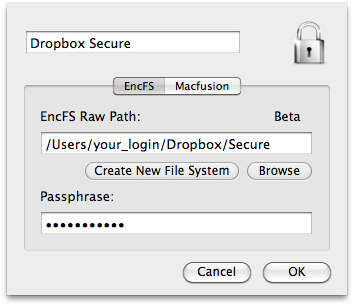
- The EncFS Raw Path is
/Users/youruser/Dropbox/Secure - The Passphrase is the password you gave when you created your EncFS volume
- The Mount Point is the local (unencrypted) folder where you access your secure folder (in this example we have used
/Users/youruser/Documents/DropSec)
You should now have an encrypted volume in your Dropbox which you access via your local ~/Documents/DropSec mount.
The security of the ~/.encfskeys/dropsec.xml key file is of paramount importance. This is the EncFS decryption key which must stay in that folder. If you delete this file then all your encrypted data is gone forever, so keep a secure backup somewhere else just in case.
UPDATE: Read this post for a new method of creating a secure Dropbox folder.

 WebDiary.com