Prevent SSH session timeout

When using mobile broadband I found that a SSH shell session to a remote server would terminate unless I used it every few minutes. To overcome this use the ServerAliveInterval option to send a regular keepalive message to the remote server, which should be enough for the ISP firewalls to maintain the TCP session indefinitely.

Either add the SSH option via the command line, e.g.

$ ssh -o ServerAliveInterval=60 user@host

Or add the following line to ~/.ssh/config:

ServerAliveInterval 60  # Send a keepalive every 60 seconds

AirPort Extreme Base Station & O2 Home Broadband

As a satisfied owner of a shiny new Apple Airport Extreme (Simultaneous Dual-Band) Base Station, I am sharing my configuration and observations for interworking with O2 Home Broadband (not the O2 Home Access product).

The new AEBS can operate on both the 2.4GHz and 5GHz bands for 802.11n WiFi and the ability to migrate wireless traffic onto the less congested 5GHz band will provide significant improvements to data throughput.

For this (and many other) reasons it is advantageous to use the AEBS to manage your local network for WiFi and firewalling, in preference to the O2 supplied Thomson router. The AEBS is not an ADSL modem however and so you will still need your O2 router to connect to the BT network.

O2 Broadband Router Settings

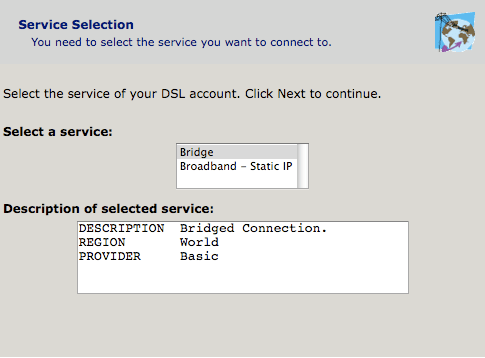
Login to your O2 Wireless router and re-configure the device as an ethernet bridge:

O2 wireless box III > Configuration > Set Up > Bridge

When the router has rebooted, login again (http://192.168.1.254/) and disable the WiFi network interface:

Home Network > Interfaces > WLAN > Configure > Interface Enabled: No
Now connect your AEBS WAN ethernet port to an ethernet port on the O2 Home Broadband router.

AirPort Extreme Settings

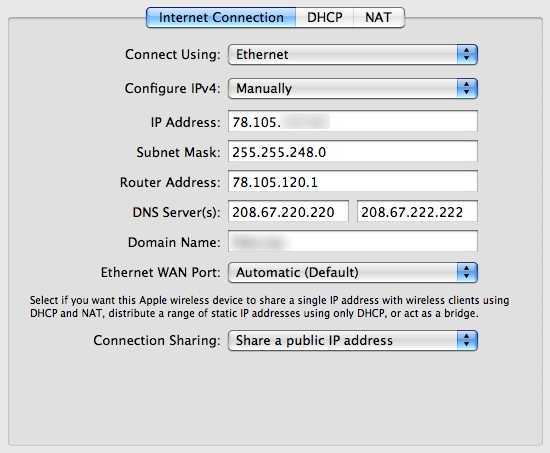
  • Internet | Internet Connection

Connect Using: Ethernet

Configure IPv4: Manually  (for static IP)

(For dynamic IP set ‘Configure IPv4: Using DHCP’ and ignore the next three lines)

IP Address: <provided by O2>

Subnet Mask: <provided by O2>

Router Address: <provided by O2>

DNS Server(s): 208.67.220.220 & 208.67.222.222 (these are the OpenDNS servers)

Domain Name: <your domain name>

Ethernet WAN Port: Automatic

Connection Sharing: Share a public IP address
  • Internet | DHCP

Select an appropriate DHCP range for your network, or simply replicate the previous O2 Home Broadband router settings:

DHCP Beginning Address: 192.168.1.64

DHCP Ending Address: 192.168.1.253

DHCP Lease: 24 hours

  • Internet | NAT

Enable NAT Port Mapping Protocol

Local network

When you choose to ‘Share a public IP address’ and create a DHCP network from the RFC 1918 private network range, the AirPort will automatically reserve the first available IP address in the network range for itself.

e.g. if you are using 192.168.1.64 to 192.168.1.253, the internal network interface of the AEBS will be assigned the IP address 192.168.1.1. This is also the default route and domain name server for clients on your internal network.

AirDisk Sharing

From experimentation I have determined that sharing a connected USB hard disk via MobileMe only works if you configure your AEBS in the network configuration described above. The disk will not be accessible outside of your local network if your O2 broadband router is configured with your external IP address.

It is also necessary to activate ‘Back to My Mac’ on the machine that you are accessing from, even if you aren’t going to access this machine remotely.

System Preferences > MobileMe > Back to My Mac > Start

Remote Management

When signed into MobileMe from your Mac and with ‘Back to My Mac’ enabled, the Airport Utility software will discover remote AirPort devices signed into the same MobileMe account. It will allow you to select and configure the device in the usual way, just like being on the local network.
BT eFrame 1000 dissected – part 1

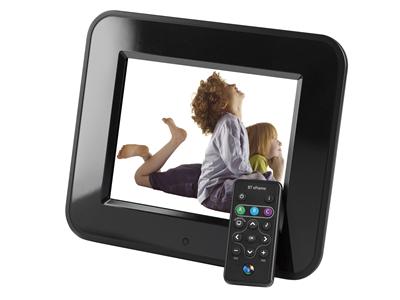
Having disposed of my Philips photo frame, I have purchased a BT eFrame 1000 wireless 8″ digital photo frame from dabs.com – for the remarkable price of £63.60.

The photo frame supports 802.11g Wi-Fi for file transfer which I am keen to give a try. As usual, the supplied management software will only run on Windows platforms (I tried Crossover on the Mac, but it doesn’t quite work). I sent a speculative email to the BT Product Helpdesk to enquire about the availability of technical specifications for the file transfer mechanism, however I have not received a response.

I then discovered from the CE Declaration of Conformity that the device is actually manufactured by Quanta Microsystems, Inc (QMI) and badged as BT. I read somewhere that QMI’s vanilla device supports the FrameChannel service but this feature has sadly been removed from the BT firmware. In an attempt to get my hands on the vanilla firmware I found a contact at QMI and pestered them for more information. They are staying tight-lipped and won’t divulge anything useful, so I am stuck without a solution for Mac OS or Linux.

Undeterred I am going to do it the hard way and embark on a mission to reverse engineer the proprietary protocols that control this device and hopefully open-up the full potential for non-Windoze users.

Wish me luck!

Configure HomePlug devices from Mac OS and Linux

If like me you have a need to configure HomePlug Powerline devices but don’t have a Windoze PC, I found a simple tool written by Manuel Kasper that compiles on most BSDs and Mac OS X and allows you to set the network encryption key without running any Windoze software.

The program is called plconfig and it communicates with most Intellon chipset based PowerPacket bridges.

Downloads: plconfig version 0.2 for BSD or Linux

Mac OS X 10.5.5 software update killed my MacBook

Having read of the security and performance issues that have been addressed in Mac OS X 10.5.5 I launched Software Update and proceeded to upgrade my MacBook from 10.5.4 to 10.5.5.

After the update and subsequent reboot my MacBook was sluggish and unresponsive. iTunes took forever to do anything and the spinning wheel was more evident than usual. I eventually managed to close iTunes and rebooted again just in case.

Big mistake!

The machine now refuses to boot up at all and shows just a flashing question mark icon. I found a relevant Apple Support article – A flashing question mark appears when you start your Mac – and followed the suggestions therein.

I booted from a Leopard DVD and loaded Disk Utility. At first it did not recognise my SATA disk, so I tried resetting the parameter RAM (PRAM). After the next reboot Disk Utility could now see my disk, but the ‘Repair Disk’ command resulted in the following error:

Verify and Repair volume “Macintosh HD”

Checking Journaled HFS Plus volume.

Invalid B-tree node size

Volume check failed.

Error: Filesystem verify or repair failed.

After a couple of attempts at this I gave up. I tried the disk in another MacBook and the same flashing question mark appears, so it looks like the disk is kaput.

Can this just be a total coincidence that a disk that has been working fine for the last year has suddenly developed a catastrophic hardware failure within minutes of updating to 10.5.5 ?