Problems with 1Password Reader for Android

I’ve been using the 1Password application from AgileBits for a few years. It has been a Godsend for keeping track of the hundreds of logins and secure notes I need to keep in sync across multiple machines.

One of the more recent additions to the client portfolio is the free 1Password Reader app for Android.

The app allows you to read your secure credentials from a 1Password keychain stored on your SD card or Dropbox folder.

This app has been working well right up until the v1.8.1.1 update which was released to Android Market on 20th June. After that the app would no longer import my 1Password keychain and was reporting the error “Urecognizable keychain”.

After some investigation I found that the cause of the problem was that my 1Password keychain did not have the correct file extension, in fact it didn’t have a file extension at all and was displaying in Finder as a folder.

The 1Password keychain is in fact a package file and the latest version of the Android app needs the keychain to have the file extension of .agilekeychain.

To find out where your 1Password keychain file is have a look for a hidden file called .ws.agile.1Password.settings in the root of your Dropbox folder. The contents of this file is the location of your 1Password keychain file.

To fix my Android problem I closed the 1Password Mac client and then added the .agilekeychain file extension to my 1Password keychain folder in Dropbox. The next time I fired up the Mac client I went into Preferences > General and updated the Data File location to match the renamed keychain.

This has fixed the Android issue which now imports the Dropbox keychain without any problems.
Google Calendars not visible on Android device

Have you added a Google calendar and it’s not showing up on your Android device?

Try this:

Go to Settings > Applications > Manage Applications > All

Then:

Calendar > Clear data

Calendar Storage > Clear data

Google Calendar Sync > Clear data

Then go into Accounts & sync and perform a Sync now

Your new calendar should now be visible on the device.

If you’re also syncing an iPhone, go to http://m.google.com/sync from your iPhone and select which calendars will be visible on the device.

HTC – Sensational at timekeeping

As has been noted previously, the clocks on some Android devices have an annoying habit of drifting significantly.

I was pleasantly surprised then to discover that the new HTC Sensation does keep very good time, even without NITZ being broadcast by my operator’s mobile network.

So how and why are they doing this? Is there another motive behind this seemingly altruistic feature addition?

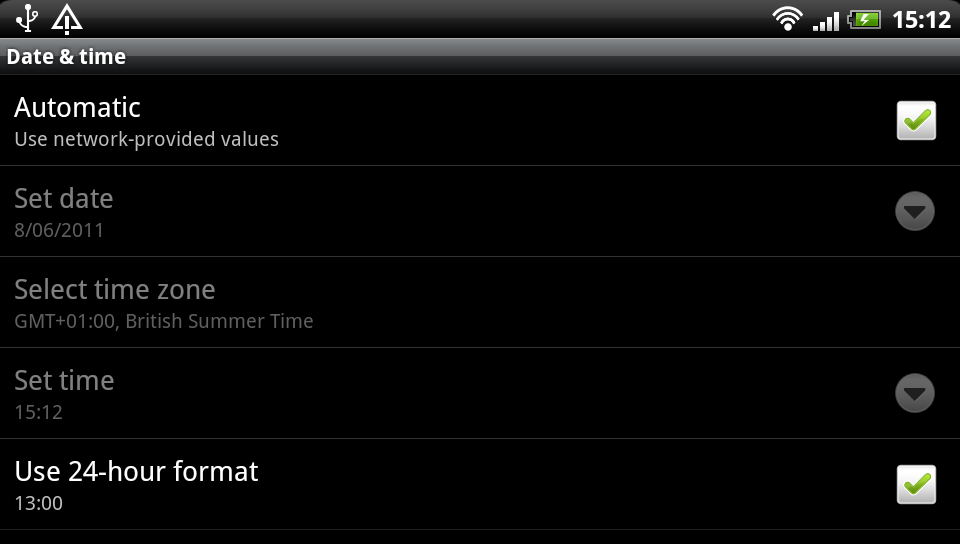
A bit of investigation reveals that when you enable ‘Automatic: use network-provided values’ in the Date & time settings the device makes a connection to one of a list of public NIST time servers and then updates its own time using the ancient Daytime Protocol.

All good so far, well done HTC.

A bit more playing with the clock revealed something else intriguing going on when the clock is manually altered. The device makes a separate HTTP connection to primary.sdstime.sdgtl.net. Now who are they?

The SDGTL.NET domain is registered to Saffron Digital Ltd in London. The very same Saffron Digital who have been recently bought out by HTC.

The HTTP request contains a client-generated nonce value along with the user-agent com.sdgtl.sectime – which also includes the device model number details and a ‘fingerprint’ value.

The response from the remote server is a XML getTimeResponse payload which contains the current Unix Epoch time and a digital signature.

So why does the device need this and why are HTC so concerned that you are manually changing the clock? My guess is that this is is being triggered by an embedded DRM service, perhaps related to Saffron Digital’s video service.