
Issue 4581: Allow user apps to set the system time

There are many aspects of Google’s Android that make it the most exciting mobile operating system in many years, however it also has some rather obvious and frustrating omissions.

Issue 4581 (as it has become known) is an example of one such omission.

The date & time settings menu on an Android device does not allow the user to set the time to a granularity less than minutes. This means that you cannot accurately set the system clock to even within a few seconds.

The Android developers have wrongly assumed that all mobile operators support the Network Identity and Timezone (or NITZ) GSM specification for sending date & time to mobile devices, when in reality many do not.

If your mobile operator does not broadcast the NITZ information then your Android device will not automatically synchronise. In common with most computers the system clock on your mobile device may drift and after a few weeks can be many seconds or even minutes out of sync.

As accurate timekeeping is necessary for many applications, most other operating systems use an IP based time protocol – Simple Network Time Protocol (or SNTP) – to keep the system clock in sync with a global pool of atomic clocks. Android however does not include a SNTP client, nor does it allow installed applications to set the system clock either. So currently (as of Android 2.2 “Froyo”) it is not possible to keep your device clock accurate.

If you too feel that this is absurd, please visit the Issue 4581 page and add your vote for this issue.

UPDATE – 21st July 2011

Google have responded officially and closed this issue:

Hi, it is by design that applications can not change the time. There are many subtle aspects of security that can rely on the current time, such as certificate expiration, license management, etc. We do not want to allow third party applications to globally disrupt the system in this way.

I don’t agree with this explanation as device vendors are now providing IP based clock update mechanisms which co-exist with DRM, see HTC – Sensational at timekeeping for an example.
Squeezebox Server on a budget

Looking for an inexpensive, quiet and low-power Squeezebox Server?

The O2 Joggler is a rebadged version of a OpenPeak OpenFrame 7″ touch-screen device. It has an Intel Atom Z520 CPU running at 1.3Ghz, 512Mb of RAM and 1GB of internal flash storage. You can also run it as a fully functioning Squeezebox Server!

Here’s how:

  • First check that your Joggler is running the latest 26635.S3 (Jun 25 2010) software, if it’s not then update
  • You will need telnet access, so download this Joggler telnet hack
  • Unpack the Zip archive to the root of a USB stick formatted in FAT16 or FAT32
  • Unplug the Joggler, insert the USB stick, then power on again and wait!
  • When the Joggler reboots it will have telnet enabled 🙂
  • Telnet to the IP address of your Joggler and login with the username ‘letmein’
  • Download Logitech’s Squeezebox Server v7.5.1 and save to your PC desktop

Now use these commands to download and install flipflip’s Squeezebox server wrapper:

cd /media
mkdir /media/ssods4 /opt
ln -s /media/ssods4 /opt/ssods4
cd /opt/ssods4
wget http://oinkzwurgl.org/downloads/ssods/ssods-4.9.1-i686.tar.gz
tar -xzvpf ssods-4.9.1-i686.tar.gz
echo "ssods:*:1000:1000:ssods:/opt/ssods4:" >> /etc/passwd
echo "ssods:*:1000:" >> /etc/group
LC_ALL= /opt/ssods4/etc/init.d/rc.ssods start

Assuming all the above has gone ok, you can now open a browser and finish the Squeezebox server installation:

  • Open a web browser on your PC and enter the URL of your Joggler, e.g. http://192.168.1.65:9099/
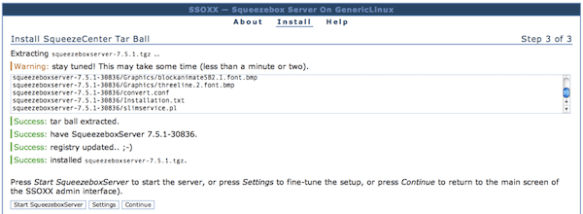
  • Follow the instructions in SSOXX to upload the squeezeboxserver-7.5.1.tgz file you downloaded earlier and then install the SqueezeCenter tar ball
  • When it’s finished you should see Success messages like the screenshot below
  • Now just click on ‘Start SqueezeboxServer’ to fire it up

If you are going to use your Joggler as a dedicated Squeezebox Server then you might want to make the following tweaks to ensure that it all starts up automatically and unnecessary processes are disabled:

  • Edit  /etc/init.d/boot.d/S99boot.hacks and add the line ‘LC_ALL= /opt/ssods4/etc/init.d/rc.ssods start’ in the starthacks() function, just after the telnetd line should be fine (my S99boot.hacks additions are at the end of this post)
  • Go into the SSOXX settings tab and make sure that autostart is enabled
  • Stop the X11 server and O2 GUI from loading by commenting out the following two lines from the end of /etc/init.d/rcS
cd /openpeak/tango
./run &
  • Disable automatic software updating to ensure that all your good work is not undone in the future:
echo "127.0.0.1 localhost applog.openpeak.net o2.openpeak.com o2.openpeak.co.uk" > /etc/hosts

I want to keep my Joggler in a cupboard and forget all about it, so I have no use for the display.
To save power I switch the screen off entirely, to do this I use Starter’s driver patches:

cd /media
wget http://get.intanet.com/dl/brightness.sh
wget http://get.intanet.com/dl/bp
./brightness.sh allowscreenoff 1
./brightness.sh negativevalues 1

Add the following line to /etc/init.d/boot.d/S99boot.hacks:

/bin/echo "-3">/proc/blctrl"

If you want to mount a Samba/CIFS share (like a NAS mount) you will need to download the cifs.ko kernel module and add that to the startup file.

The starthacks() function in my /etc/init.d/boot.d/S99boot.hacks startup file now looks like this:

starthacks()
{
  # enable telnet
  /usr/sbin/telnetd
  # load CIFS kernel module
  /sbin/insmod /media/cifs.ko
  /bin/sleep 2
  # mount network share
  /bin/mount -t cifs //192.168.1.2/musicshare /mnt/music -o user=music,password=secret
  /bin/sleep 2
  # disable screen
  /bin/echo "-3">/proc/blctrl
  # start SSOXX and Squeezebox Server
  LC_ALL= /opt/ssods4/etc/init.d/rc.ssods start
}

Reboot your Joggler for the display driver patches to load.