Automount Drobo FS shares in Mac OS X

To configure Mac OS X to automatically mount a Drobo FS share whenever it is accessed:

Add the following line to /etc/auto_master:

/Volumes/Drobo                      auto_drobo

Then (as root) create the file /etc/auto_drobo and add your mounts to it, e.g.

Share1 -fstype=smbfs ://username1:password1@192.168.1.2/Share1
Share2 -fstype=smbfs ://username2:password2@192.168.1.2/Share2

Use the following command to start the automount:

/usr/sbin/automount -vc

Now whenever the volume is accessed it will be automatically mounted.

You might also want to change the default automount timeout setting which is in /etc/autofs.conf.

PXE boot from a MacBook

In the course of installing Debian Linux on an ALIX.2D3 system I needed to setup a Preboot eXecution Environment (PXE) and all I had to hand was a MacBook. This is how I did it.

There are two elements of the PXE boot, the DHCP server and the TFTP server. DHCP tells the client where to find the network bootstrap program and it then retrieves it using TFTP.

To configure the Mac OS DHCP server you will need to edit /etc/bootpd.plist

The options I used are below:

<?xml version="1.0" encoding="UTF-8"?>
<!DOCTYPE plist PUBLIC "-//Apple//DTD PLIST 1.0//EN" "http://www.apple.com/DTDs/PropertyList-1.0.dtd">
<plist version="1.0">
<dict>
  <key>Subnets</key>
  <array>
    <dict>
      <key>allocate</key>
      <true/>
      <key>dhcp_option_128</key>
      <string>192.168.0.1</string>
      <key>dhcp_option_66</key>
      <string>192.168.0.1</string>
      <key>dhcp_option_67</key>
      <string>pxelinux.0</string>
      <key>name</key>
      <string>My subnet</string>
      <key>net_address</key>
      <string>192.168.0.0</string>
      <key>net_mask</key>
      <string>255.255.255.0</string>
      <key>net_range</key>
      <array>
        <string>192.168.0.100</string>
        <string>192.168.0.199</string>
      </array>
    </dict>
  </array>
  <key>bootp_enabled</key>
  <true/>
  <key>dhcp_enabled</key>
  <true/>
  <key>netboot_enable</key>
  <true/>
</dict>
</plist>

dhcp_option_66 is the TFTP Server Name
dhcp_option_67 is the Boot File Name
dhcp_option_128 is TFTP Server IP address

I’m not sure which of dhcp_option_66 or dhcp_option_128 is actually being used here, but since they are both the same it doesn’t harm to leave them both in there.

This DHCP server configuration will allocate an IP address to the connected client in the range 192.168.0.100 – 192.168.0.199.

For this to work you will also need to configure your ethernet interface (usually en0) with the static IP address 192.168.0.1.

To start the DHCP server I used ‘/usr/libexec/bootpd -d’ which tells bootp to stay in the foreground and output additional debug information.

Next we will need to configure and start the TFTP server.

For simplicity I used a neat Mac OS application called TftpServer, which is written by Fabrizio La Rosa.

The application lets you configure the TFTP server path as well as checking path permissions and managing the startup and shutdown of the daemon.

With the DHCP and TFTP servers running and the client connected I copied my Debian network bootstrap files to the TFTP path (in my case /private/tftpboot) and then created a few symbolic links:

cd /private/tftpboot
ln -s ./debian-installer/i386/pxelinux.0 pxelinux.
ln -s ./debian-installer/i386/pxelinux.0 pxelinux.0
ln -s ./debian-installer/i386/pxelinux.cfg pxelinux.cfg

The first symlink is not a typo, it is deliberate. After much trial and error (and ethereal packet sniffing) I discovered that for some reason the requested file kept dropping the trailing zero and so by simply adding the symlink everything worked.

With all this in place I was able to power-on the ALIX.2D3, watch it configure via DHCP and then retrieve and execute the installer.

Please leave a comment if you’ve found any of this useful, that way I won’t feel like I’ve wasted my time writing all this up 🙂

"Just avoid holding it in that way"

Those were the words of advice offered by Apple CEO Steve Jobs to a customer who emailed Jobs after experiencing antenna performance issues with his new iPhone 4 purchase.

What’s going on Apple?

When the original iPhone went on sale in June 2007 it changed the mobile industry overnight. This is not an overstatement. The traditional mobile handset manufacturers had become lazy and lethargic, churning out what was essentially the same product year after year with minor tweaks and trendy colour variants. Apple’s original iPhone product was nothing short of revolutionary in terms of user interface, style and engineering.

Apple were allowed to capitalise on their advancements because lazy handset vendors were unprepared and unable to react quickly enough. Many attempts were made to duplicate iPhone’s innovative touch screen user interface, most notably the much heralded Palm Pre, but none of them could claim to be a success. But that was then.

It took another relative newbie to the world of mobile devices to mount a serious challenge to Apple’s dominance – and that was the mighty Google. While Apple was content with making minor improvements to their devices, Google was plotting a revolution of their own.

Step up Google’s Android platform. Android has slowly gained momentum and adoption in the smartphone marketplace and recent handsets such as HTC’s Desire have finally become a credible alternative to iPhone.

Some would argue that Android’s capabilities have actually surpassed those of iOS (the new name for iPhone’s operating system). Credit for that in part is due to the decision to release Android as Open Source, while iOS has remained proprietary and tightly controlled by Apple – much to the chagrin of mobile application developers. In the first quarter of 2010 Android devices outsold Apple for the first time – and by quite some margin. Apple’s reaction was to sue HTC.

iPhone 4 Fail

So what of iPhone 4? Apple are in the unusual position of playing catch-up but this latest addition to the iPhone line up has failed to impress. Apple’s marketing campaign for iPhone 4 claims “This changes everything. Again.” Something has definitely changed, but not in a good way.

One day after the official iPhone 4 launch and customers are already complaining of poor antenna performance, yellow tinted displays and the ease of accidentally smashing iPhone’s “ultradurable” aluminosilicate glass panels. These problems would ordinarily have been identified during pre-release testing, but Apple’s paranoia dictates that test devices cannot be used without their protective plastic shroud and so early adopters have unwittingly become iPhone 4’s beta testers. There are parallels here with Microsoft’s old approach to product development, this is not something that Apple consumers are used to.

Customers forgave the original iPhone for its idiosyncrasies, restrictive capabilities and lack of features because it was something very special. Now there are many new mobile handsets that can justifiably claim to be special. iPhone 4 and the iOS 4 software update have brought iPhone up to a comparable specification level, but iPhone has lost its crown as the undisputed smartphone champion and the next generation are snapping at its heels.

Apple AirPort trusted networks list

I was tearing my hair out trying to understand why my MacBook repeatedly joined a WiFi network, despite my removing the SSID from the preferred networks list and deleting the AirPort network password from the System Keychain. I was attempting to force my MacBook to only associate with the 5GHz version of a WiFi network (on an Airport Extreme Base Station), but no matter what I did I would find that the MacBook occasionally reverted to associating with the original 2GHz SSID again.

The mystery was solved with the discovery that as well as the WiFi Preferred Networks list, there is a hidden trusted networks list buried deep within Mac OS X. Even if you remove a network SSID from the visible lists, your MacBook can still silently associate with previously saved networks.

Mac OS X retains WiFi network information and authentication credentials in the com.apple.airport.preferences.plist file which is located in the /Library/Preferences/SystemConfiguration folder.

To remove WiFi networks, either delete the individual networks from the KnownNetworks key using Property List Editor, or delete the file altogether and allow AirPort to rebuild it. It’s probably a good idea to turn AirPort off before editing the file.

There is an old Apple knowledge base article – AirPort: How to reset the trusted networks list – which also describes this.

AirPort Extreme Base Station & O2 Home Broadband

As a satisfied owner of a shiny new Apple Airport Extreme (Simultaneous Dual-Band) Base Station, I am sharing my configuration and observations for interworking with O2 Home Broadband (not the O2 Home Access product).

The new AEBS can operate on both the 2.4GHz and 5GHz bands for 802.11n WiFi and the ability to migrate wireless traffic onto the less congested 5GHz band will provide significant improvements to data throughput.

For this (and many other) reasons it is advantageous to use the AEBS to manage your local network for WiFi and firewalling, in preference to the O2 supplied Thomson router. The AEBS is not an ADSL modem however and so you will still need your O2 router to connect to the BT network.

O2 Broadband Router Settings

Login to your O2 Wireless router and re-configure the device as an ethernet bridge:

O2 wireless box III > Configuration > Set Up > Bridge

When the router has rebooted, login again (http://192.168.1.254/) and disable the WiFi network interface:

Home Network > Interfaces > WLAN > Configure > Interface Enabled: No
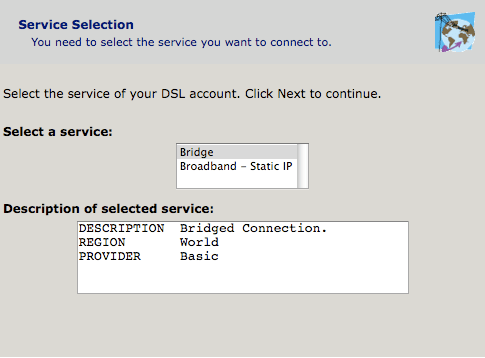
Now connect your AEBS WAN ethernet port to an ethernet port on the O2 Home Broadband router.

AirPort Extreme Settings

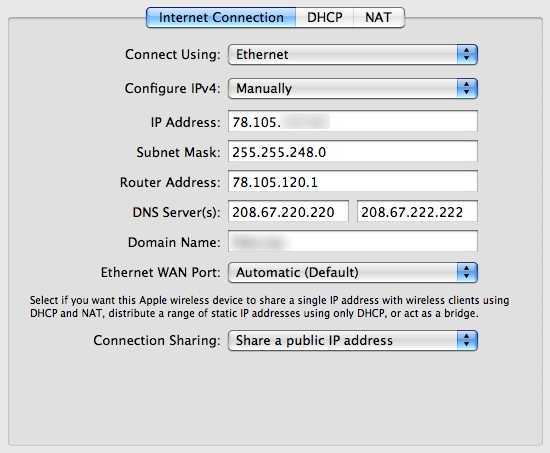
  • Internet | Internet Connection

Connect Using: Ethernet

Configure IPv4: Manually  (for static IP)

(For dynamic IP set ‘Configure IPv4: Using DHCP’ and ignore the next three lines)

IP Address: <provided by O2>

Subnet Mask: <provided by O2>

Router Address: <provided by O2>

DNS Server(s): 208.67.220.220 & 208.67.222.222 (these are the OpenDNS servers)

Domain Name: <your domain name>

Ethernet WAN Port: Automatic

Connection Sharing: Share a public IP address
  • Internet | DHCP

Select an appropriate DHCP range for your network, or simply replicate the previous O2 Home Broadband router settings:

DHCP Beginning Address: 192.168.1.64

DHCP Ending Address: 192.168.1.253

DHCP Lease: 24 hours

  • Internet | NAT

Enable NAT Port Mapping Protocol

Local network

When you choose to ‘Share a public IP address’ and create a DHCP network from the RFC 1918 private network range, the AirPort will automatically reserve the first available IP address in the network range for itself.

e.g. if you are using 192.168.1.64 to 192.168.1.253, the internal network interface of the AEBS will be assigned the IP address 192.168.1.1. This is also the default route and domain name server for clients on your internal network.

AirDisk Sharing

From experimentation I have determined that sharing a connected USB hard disk via MobileMe only works if you configure your AEBS in the network configuration described above. The disk will not be accessible outside of your local network if your O2 broadband router is configured with your external IP address.

It is also necessary to activate ‘Back to My Mac’ on the machine that you are accessing from, even if you aren’t going to access this machine remotely.

System Preferences > MobileMe > Back to My Mac > Start

Remote Management

When signed into MobileMe from your Mac and with ‘Back to My Mac’ enabled, the Airport Utility software will discover remote AirPort devices signed into the same MobileMe account. It will allow you to select and configure the device in the usual way, just like being on the local network.