Remote SSH using Back To My Mac

One of the less well publicised features of Apple’s iCloud service is Back To My Mac.

This service provides a private IPv6 network which you can use to securely connect all your Mac hosts.

To use BTMM you will need to upgrade all your Macs to OS X Lion and sign them all into the same Apple iCloud account. You will also need your unique BTMM account number.

When you are signed into iCloud you can discover your BTMM account number as follows:

$ dns-sd -E
Looking for recommended registration domains:
Timestamp     Recommended Registration domain
12:07:46.550  Added     (More)               local
12:07:46.550  Added                          icloud.com
                                             - > btmm
                                             - - > members
                                             - - - > 123456789

The final line shows your individual BTMM account number.

For example, if you Computer Name (set in System Preferences > Sharing) is mymac and your BTMM account number is 123456789, then the fully qualified domain name of the host is mymac.123456789.members.btmm.icloud.com.

If you have spaces in your Computer Name then replace them with dashes, e.g. “My Mac” becomes the hostname my-mac.

To test connectivity to your remote host use ping6, e.g.

ping6 mymac.123456789.members.btmm.icloud.com

To list all the SSH enabled hosts on your domain:

dns-sd -B _ssh._tcp

You would SSH into your host using this command:

ssh -2 -6 username@mymac.123456789.members.btmm.icloud.com

Note that you will only be able to communicate with the other hosts on your iCloud private network if the Mac you are using is also signed into the same iCloud account.

You can also use an open SSH connection to access your non-Apple hosts on your internal network by using SSH port forwarding. This tunnels the destination traffic over the BTMM private network via your remote Mac.

For example, if you have a web server running on a host with the IP address 192.168.1.2 then you can use this SSH command to set-up a forwarded port:

ssh -2 -6 -L 8080:192.168.1.2:80 username@mymac.123456789.members.btmm.icloud.com

To access the remote host from your local machine you would go to http://127.0.0.1:8080/

Uninstall Symantec Enterprise Vault Client on Mac OS

Since Symantec doesn’t provide an uninstaller script for their Enterprise Vault Client, here’s how to remove it on Mac OS.

Open a Terminal window and execute these commands:

launchctl unload -D user /Library/LaunchAgents/com.symantec.ev.daemon.plist
sudo killall -m  "Enterprise Vault .*"
sudo rm -f /Library/LaunchAgents/com.symantec.ev.daemon.plist
sudo rm -rf "/Library/PreferencePanes/Enterprise Vault.prefPane"
sudo rm -rf "/Library/Application Support/Symantec Enterprise Vault"
rm -rf "~/Library/Application Support/Symantec Enterprise Vault"

Android 4.0 turns GET into POST

After upgrading to Android 4.0 ‘Ice Cream Sandwich‘ I found that some of my existing apps weren’t working as expected.

On deeper investigation I discovered the culprit. When installed on devices running ICS the apps made HTTP POST requests when they were programmed to be GET requests.

It appears that Google have subtly changed the working of the java.net.HttpURLConnection class – without telling anyone!

The Android package reference documentation has this little gem tucked away in the class overview notes:

HTTP Methods

HttpURLConnection uses the GET method by default. It will use POST if setDoOutput(true) has been called. Other HTTP methods (OPTIONSHEADPUTDELETE and TRACE) can be used with setRequestMethod(String).

My now non-functional Android apps did indeed call setDoOutput, but in Android releases prior to 4.0 this did not result in the HTTP method being changed from a GET to a POST.

Even explicitly setting setRequestMethod("GET") does not fix the problem. Basically if you don’t want your app to POST, you must not call setDoOutput.

The apps have not changed, there is nothing referencing this change in the API Differences Report, but the behaviour is definitely different in Android 4.0.

Could this be what’s behind the flurry of Android Market app updates for ICS-related fixes?

Dropbox & EncFS on OS X Lion

I previously wrote about a method for creating a super-secure filesystem using Dropbox’s cloud storage.

After updating to Mac OS Lion I struggled to get the MacFusion GUI to work and so I wrote an application to automate the mounting and unmounting of the EncFS filesystem.

I also took the opportunity to switch from the now abandoned MacFUSE to Fuse4X, which is a properly maintained fork of MacFUSE started in June 2011.

The install procedure is much simpler than before, you install Fuse4X and EncFS, but instead of using the MacFusion GUI you just call my script instead.

To the instructions!

First download and install Fuse4X and a version of EncFS which uses the Fuse4X APIs. Thanks to Simone Lehmann for providing an EncFS Mac installer at http://www.lisanet.de/?p=128 (also mirrored here).

To create a new encrypted volume (stored locally at first to prevent the EncFS key from being synchronised with Dropbox):

encfs ~/Desktop/_Encrypted ~/Documents/_DropSec

Answer ‘yes’ when prompted to create the new folders and choose ‘p’ for pre-configured paranoia mode (256-bit AES encryption). Enter a secure EncFS password when prompted and you’re done.

Now the filesystem has been created we can deal with securing the key.

umount ~/Documents/_DropSec
mkdir ~/.keys
mv ~/Desktop/_Encrypted/.encfs6.xml ~/.keys/dropsec.xml

The commands above move your key from the EncFS filesystem into a hidden folder in your (local) home directory

Now move the entire ~/Desktop/_Encrypted folder (minus your key) into your Dropbox:

mv ~/Desktop/_Encrypted ~/Dropbox/

Finally download my DropSec application and copy it to your Applications folder.

The first time you run DropSec it will prompt you for your EncFS password which it stores in your local login keychain. The password must match the secure password you set in a previous step.

To mount or unmount the encrypted filesystem simply run the DropSec app. For convenience copy it to your Mac OS Dock for quick access.

Opting-out of Google Location Server

In September Google announced their intention to comply with requests from European data protection authorities and offer a method for opting-out of their Google Location Server (GLS).

Peter Fleischer (Google’s Global Privacy Counsel) has today published an update on the European Public Policy Blog and Google have added specific opt-out details on their Maps Help page.

What is GLS? It’s a location service that most Android smart phones use to request your current location. Your smart phone could simply use satellite positioning (GPS) to accurately pin-point your location, but GPS consumes battery and generally only works outside.

Instead of using GPS your smart phone attempts to discover your location by scanning for nearby WiFi access points. It gathers the relative signal strengths, network names and unique network addresses and sends the details to the Google Location Server (GLS) for processing.

The GLS checks its database of WiFi access points and returns an estimate of your location. If your local WiFi access points are known and already in the GLS then it will return a fairly accurate location, almost on a par with GPS, for a fraction of the power.

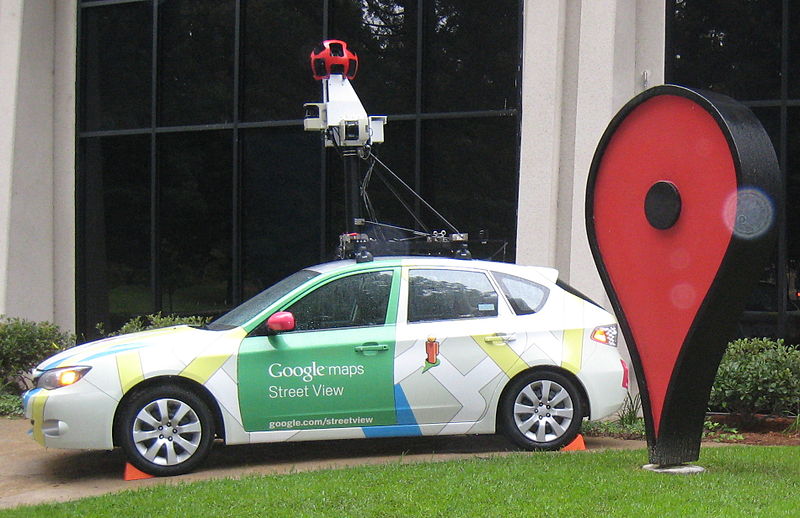
Google built their WiFi location database while collecting data for Google StreetView and it is constantly updated and augmented by smart phone crowdsourcing. The manner in which Google collected this data has been controversial and Google have been investigated for breaches of interception laws. As a result Google has been forced to offer this opt-out scheme to appease regulators.

So what do you need to do to ensure that your own WiFi access point is not included in the Google Location Server database?

Simply append “_nomap” to the SSID of your WiFi network and Google will remove it from their database the next time a device sends information to the GLS.

It’s undoubtedly an inconvenience to change your WiFi network name and re-associate all your wireless devices, but if this scheme is adopted by all the mapping services (Microsoft, Apple, Skyhook) then it could well be worth it.