Issue 4581: Allow user apps to set the system time

There are many aspects of Google’s Android that make it the most exciting mobile operating system in many years, however it also has some rather obvious and frustrating omissions.

Issue 4581 (as it has become known) is an example of one such omission.

The date & time settings menu on an Android device does not allow the user to set the time to a granularity less than minutes. This means that you cannot accurately set the system clock to even within a few seconds.

The Android developers have wrongly assumed that all mobile operators support the Network Identity and Timezone (or NITZ) GSM specification for sending date & time to mobile devices, when in reality many do not.

If your mobile operator does not broadcast the NITZ information then your Android device will not automatically synchronise. In common with most computers the system clock on your mobile device may drift and after a few weeks can be many seconds or even minutes out of sync.

As accurate timekeeping is necessary for many applications, most other operating systems use an IP based time protocol – Simple Network Time Protocol (or SNTP) – to keep the system clock in sync with a global pool of atomic clocks. Android however does not include a SNTP client, nor does it allow installed applications to set the system clock either. So currently (as of Android 2.2 “Froyo”) it is not possible to keep your device clock accurate.

If you too feel that this is absurd, please visit the Issue 4581 page and add your vote for this issue.

UPDATE – 21st July 2011

Google have responded officially and closed this issue:

Hi, it is by design that applications can not change the time. There are many subtle aspects of security that can rely on the current time, such as certificate expiration, license management, etc. We do not want to allow third party applications to globally disrupt the system in this way.

I don’t agree with this explanation as device vendors are now providing IP based clock update mechanisms which co-exist with DRM, see HTC – Sensational at timekeeping for an example.
Squeezebox Server on a budget

Looking for an inexpensive, quiet and low-power Squeezebox Server?

The O2 Joggler is a rebadged version of a OpenPeak OpenFrame 7″ touch-screen device. It has an Intel Atom Z520 CPU running at 1.3Ghz, 512Mb of RAM and 1GB of internal flash storage. You can also run it as a fully functioning Squeezebox Server!

Here’s how:

  • First check that your Joggler is running the latest 26635.S3 (Jun 25 2010) software, if it’s not then update
  • You will need telnet access, so download this Joggler telnet hack
  • Unpack the Zip archive to the root of a USB stick formatted in FAT16 or FAT32
  • Unplug the Joggler, insert the USB stick, then power on again and wait!
  • When the Joggler reboots it will have telnet enabled 🙂
  • Telnet to the IP address of your Joggler and login with the username ‘letmein’
  • Download Logitech’s Squeezebox Server v7.5.1 and save to your PC desktop

Now use these commands to download and install flipflip’s Squeezebox server wrapper:

cd /media
mkdir /media/ssods4 /opt
ln -s /media/ssods4 /opt/ssods4
cd /opt/ssods4
wget http://oinkzwurgl.org/downloads/ssods/ssods-4.9.1-i686.tar.gz
tar -xzvpf ssods-4.9.1-i686.tar.gz
echo "ssods:*:1000:1000:ssods:/opt/ssods4:" >> /etc/passwd
echo "ssods:*:1000:" >> /etc/group
LC_ALL= /opt/ssods4/etc/init.d/rc.ssods start

Assuming all the above has gone ok, you can now open a browser and finish the Squeezebox server installation:

  • Open a web browser on your PC and enter the URL of your Joggler, e.g. http://192.168.1.65:9099/
  • Follow the instructions in SSOXX to upload the squeezeboxserver-7.5.1.tgz file you downloaded earlier and then install the SqueezeCenter tar ball
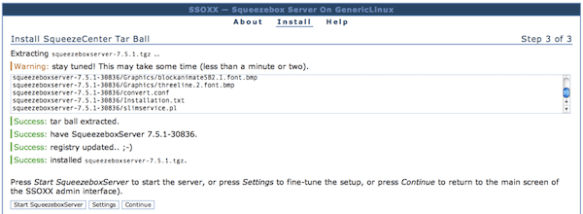
  • When it’s finished you should see Success messages like the screenshot below
  • Now just click on ‘Start SqueezeboxServer’ to fire it up

If you are going to use your Joggler as a dedicated Squeezebox Server then you might want to make the following tweaks to ensure that it all starts up automatically and unnecessary processes are disabled:

  • Edit  /etc/init.d/boot.d/S99boot.hacks and add the line ‘LC_ALL= /opt/ssods4/etc/init.d/rc.ssods start’ in the starthacks() function, just after the telnetd line should be fine (my S99boot.hacks additions are at the end of this post)
  • Go into the SSOXX settings tab and make sure that autostart is enabled
  • Stop the X11 server and O2 GUI from loading by commenting out the following two lines from the end of /etc/init.d/rcS
cd /openpeak/tango
./run &
  • Disable automatic software updating to ensure that all your good work is not undone in the future:
echo "127.0.0.1 localhost applog.openpeak.net o2.openpeak.com o2.openpeak.co.uk" > /etc/hosts

I want to keep my Joggler in a cupboard and forget all about it, so I have no use for the display.
To save power I switch the screen off entirely, to do this I use Starter’s driver patches:

cd /media
wget http://get.intanet.com/dl/brightness.sh
wget http://get.intanet.com/dl/bp
./brightness.sh allowscreenoff 1
./brightness.sh negativevalues 1

Add the following line to /etc/init.d/boot.d/S99boot.hacks:

/bin/echo "-3">/proc/blctrl"

If you want to mount a Samba/CIFS share (like a NAS mount) you will need to download the cifs.ko kernel module and add that to the startup file.

The starthacks() function in my /etc/init.d/boot.d/S99boot.hacks startup file now looks like this:

starthacks()
{
  # enable telnet
  /usr/sbin/telnetd
  # load CIFS kernel module
  /sbin/insmod /media/cifs.ko
  /bin/sleep 2
  # mount network share
  /bin/mount -t cifs //192.168.1.2/musicshare /mnt/music -o user=music,password=secret
  /bin/sleep 2
  # disable screen
  /bin/echo "-3">/proc/blctrl
  # start SSOXX and Squeezebox Server
  LC_ALL= /opt/ssods4/etc/init.d/rc.ssods start
}

Reboot your Joggler for the display driver patches to load.

Google Notifier for Mac

Having discovered the Google Notifier for Mac application which checks Gmail email and calendar events without having to open a browser, I wanted to change the default polling interval. This isn’t something that can be changed through a settings menu, so if you want to do the same here’s how:

  • Click on the Google Notifier icon in the menu bar
  • Press & hold the Option (alt) + Command (cmd) keys, then click on Preferences
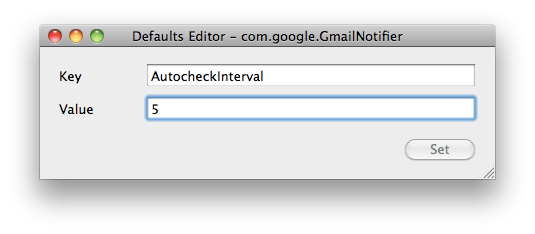
  • A pop-up Defaults Editor box will appear
  • In the Key field type in AutocheckInterval
  • In the Value field enter the desired check interval (in minutes)
  • Close the Defaults Editor box

Alternatively add or edit the AutocheckInterval string in ~/Library/Preferences/com.google.GmailNotifier.plist using Property List Editor.
Quit all Google Notifiers and restart for the new settings to take effect.

"Just avoid holding it in that way"

Those were the words of advice offered by Apple CEO Steve Jobs to a customer who emailed Jobs after experiencing antenna performance issues with his new iPhone 4 purchase.

What’s going on Apple?

When the original iPhone went on sale in June 2007 it changed the mobile industry overnight. This is not an overstatement. The traditional mobile handset manufacturers had become lazy and lethargic, churning out what was essentially the same product year after year with minor tweaks and trendy colour variants. Apple’s original iPhone product was nothing short of revolutionary in terms of user interface, style and engineering.

Apple were allowed to capitalise on their advancements because lazy handset vendors were unprepared and unable to react quickly enough. Many attempts were made to duplicate iPhone’s innovative touch screen user interface, most notably the much heralded Palm Pre, but none of them could claim to be a success. But that was then.

It took another relative newbie to the world of mobile devices to mount a serious challenge to Apple’s dominance – and that was the mighty Google. While Apple was content with making minor improvements to their devices, Google was plotting a revolution of their own.

Step up Google’s Android platform. Android has slowly gained momentum and adoption in the smartphone marketplace and recent handsets such as HTC’s Desire have finally become a credible alternative to iPhone.

Some would argue that Android’s capabilities have actually surpassed those of iOS (the new name for iPhone’s operating system). Credit for that in part is due to the decision to release Android as Open Source, while iOS has remained proprietary and tightly controlled by Apple – much to the chagrin of mobile application developers. In the first quarter of 2010 Android devices outsold Apple for the first time – and by quite some margin. Apple’s reaction was to sue HTC.

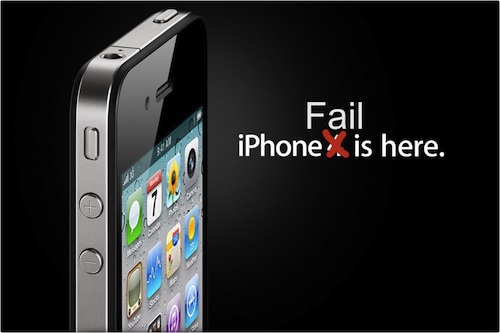
iPhone 4 Fail

So what of iPhone 4? Apple are in the unusual position of playing catch-up but this latest addition to the iPhone line up has failed to impress. Apple’s marketing campaign for iPhone 4 claims “This changes everything. Again.” Something has definitely changed, but not in a good way.

One day after the official iPhone 4 launch and customers are already complaining of poor antenna performance, yellow tinted displays and the ease of accidentally smashing iPhone’s “ultradurable” aluminosilicate glass panels. These problems would ordinarily have been identified during pre-release testing, but Apple’s paranoia dictates that test devices cannot be used without their protective plastic shroud and so early adopters have unwittingly become iPhone 4’s beta testers. There are parallels here with Microsoft’s old approach to product development, this is not something that Apple consumers are used to.

Customers forgave the original iPhone for its idiosyncrasies, restrictive capabilities and lack of features because it was something very special. Now there are many new mobile handsets that can justifiably claim to be special. iPhone 4 and the iOS 4 software update have brought iPhone up to a comparable specification level, but iPhone has lost its crown as the undisputed smartphone champion and the next generation are snapping at its heels.

Samba copy fails after upgrade to Mac OS X 10.6.3

Ever since upgrading to Mac OS X 10.6.3 I had been unable to copy files from my MacBook to a Linux Samba share, which had previously worked flawlessly. The file copy would fail and Finder displayed the error message: “The operation can’t be completed because you don’t have permission to access some of the items” or “The Finder can’t complete the operation because some data in xxx can’t be read or written. (Error code -36)”.ErrorI found several articles suggesting solutions, the only one that eventually worked for me was to add the line “unix extensions = no” to the [global] settings of the smb.conf file on the Linux server. After a restart of the SMB processes file copying is working again.

Thanks for all the time I wasted on resolving this one Apple!