Thanks Nokia

Great, yet another instance of my supposedly secure personal data having been stolen by hackers unknown.

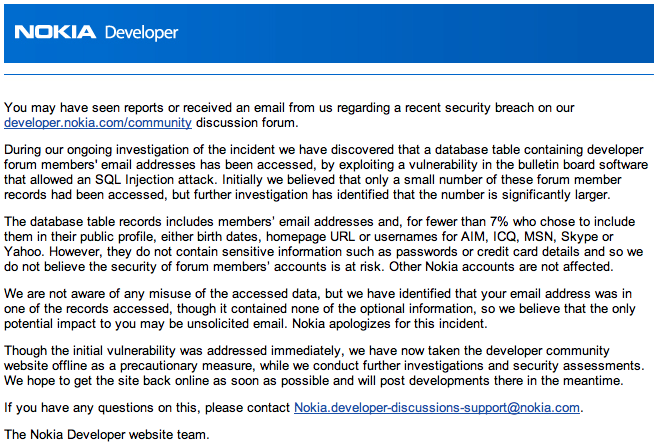
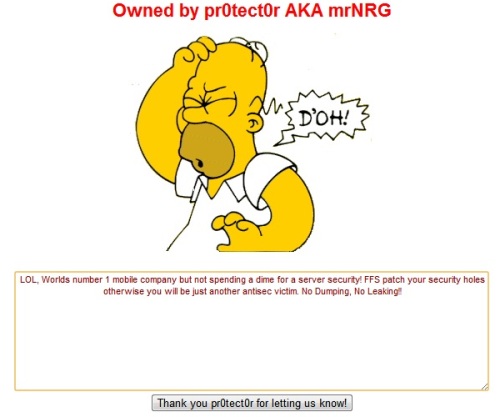
This time the hugely negligent company guilty of not securing their databases adequately was Nokia …

I’m beginning to doubt if there is actually any more of my data out there that’s still private to be stolen in this way. Most of it is now probably in the public domain thanks to the likes of Nokia, Travelodge and Sega.

Problems with 1Password Reader for Android

I’ve been using the 1Password application from AgileBits for a few years. It has been a Godsend for keeping track of the hundreds of logins and secure notes I need to keep in sync across multiple machines.

One of the more recent additions to the client portfolio is the free 1Password Reader app for Android.

The app allows you to read your secure credentials from a 1Password keychain stored on your SD card or Dropbox folder.

This app has been working well right up until the v1.8.1.1 update which was released to Android Market on 20th June. After that the app would no longer import my 1Password keychain and was reporting the error “Urecognizable keychain”.

After some investigation I found that the cause of the problem was that my 1Password keychain did not have the correct file extension, in fact it didn’t have a file extension at all and was displaying in Finder as a folder.

The 1Password keychain is in fact a package file and the latest version of the Android app needs the keychain to have the file extension of .agilekeychain.

To find out where your 1Password keychain file is have a look for a hidden file called .ws.agile.1Password.settings in the root of your Dropbox folder. The contents of this file is the location of your 1Password keychain file.

To fix my Android problem I closed the 1Password Mac client and then added the .agilekeychain file extension to my 1Password keychain folder in Dropbox. The next time I fired up the Mac client I went into Preferences > General and updated the Data File location to match the renamed keychain.

This has fixed the Android issue which now imports the Dropbox keychain without any problems.

Securing Dropbox

After the well publicised Dropbox security failings, I started searching for a solution which would allow me to encrypt private data held in my Dropbox while still having easy access to it from my personal Mac.

I could create a Mac encrypted disk image but this would be unwieldy to manage and probably result in large file updates whenever any of the contents were changed.

A more elegant technical solution is to create an encrypted user-space filesystem. It’s a bit more work to setup and you will need a combination of tools, but it does allow for a much more flexible and manageable configuration.

Instructions:

/usr/bin/ruby -e "$(curl -fsSL https://raw.github.com/gist/323731)"
  • Install Apple Xcode – this can be downloaded from the Apple Developer site
  • Install the latest EncFS encrypted filesystem (v1.7.4 at time of writing):
sudo brew install encfs

I want to make this installation as secure as possible so I’m not going to store the EncFS key file on Dropbox. To accomplish this I use a neat trick.

We’re going to create a new encrypted volume, but do this locally first so the EncFS key is never synchronised with Dropbox:

encfs ~/Desktop/Secure ~/Documents/DropSec

Answer ‘yes’ when prompted to create the new folders and choose ‘p’ for pre-configured paranoia mode (256-bit AES encryption). Enter a secure password when prompted and you’re done.

Now the filesystem has been created we can deal with the key.

umount ~/Documents/DropSec
mkdir ~/.encfskeys
mv ~/Desktop/Secure/.encfs6.xml ~/.encfskeys/dropsec.xml

Remove the /usr/local/bin/encfs symbolic link …

rm /usr/local/bin/encfs

… and replace with a simple wrapper script.

Use a text editor to create the following script:

#!/bin/sh
# Wrapper to EncFS
REALENCFS="/usr/local/Cellar/encfs/1.7.4/bin/encfs"
MYUSER=`whoami`
export ENCFS6_CONFIG="/Users/${MYUSER}/.encfskeys/dropsec.xml"
$REALENCFS "$@"

Don’t forget to make the new wrapper script executable:

chmod 555 /usr/local/bin/encfs

Create a dummy key to ensure that the Macfusion plugin will recognise the EncFS volume:

touch ~/Desktop/Secure/.encfs6.xml

Now move the entire ~/Desktop/Secure folder into your Dropbox:

mv ~/Desktop/Secure ~/Dropbox/

To check the secure volume settings use:

ENCFS6_CONFIG="/Users/youruser/.encfskeys/dropsec.xml" encfsctl info ~/Dropbox/Secure

To change your secret password use:

ENCFS6_CONFIG="/Users/youruser/.encfskeys/dropsec.xml" encfsctl passwd ~/Dropbox/Secure

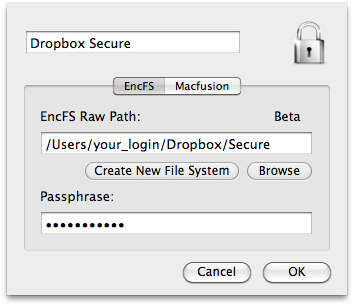
Use the Macfusion GUI to mount and unmount the volume when you need it.

  • The EncFS Raw Path is /Users/youruser/Dropbox/Secure
  • The Passphrase is the password you gave when you created your EncFS volume
  • The Mount Point is the local (unencrypted) folder where you access your secure folder (in this example we have used /Users/youruser/Documents/DropSec)

You should now have an encrypted volume in your Dropbox which you access via your local ~/Documents/DropSec mount.

The security of the ~/.encfskeys/dropsec.xml key file is of paramount importance. This is the EncFS decryption key which must stay in that folder. If you delete this file then all your encrypted data is gone forever, so keep a secure backup somewhere else just in case.

UPDATE: Read this post for a new method of creating a secure Dropbox folder.
Customer Data Insecurity

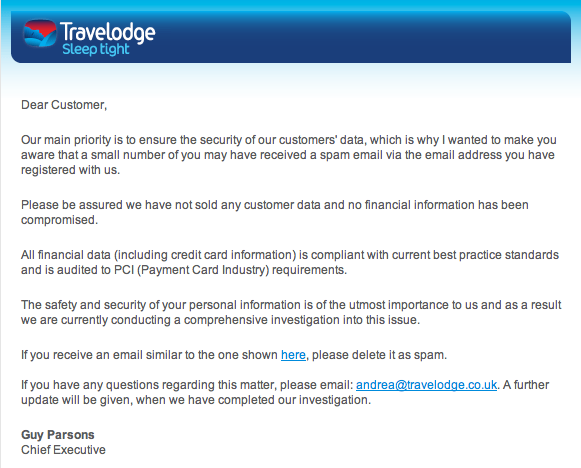
In the last couple of weeks I’ve received separate emails from Sega and Travelodge informing me that my personal details have been ‘stolen’ by hackers and may be used in phishing attacks against me. These are just a couple in a long line of examples of well publicised hacks against major online sites.

Actually this likely won’t affect me at all. I have no faith in web sites keeping my personal data safe and don’t trust the security of online retailers at all. My email is delivered via collaborative filtering anti-spam techniques and I rarely see spam nowadays anyway.

I use a different secure password for every web site and never divulge real personal details in online registrations. They don’t have my real date of birth, mother’s maiden name or anything else considered valuable information by the hacker community.

Don’t forget that the retailers have no idea what your real personal details are, so you are perfectly entitled to make up what you want when you register with them. I strongly advise you to invent a pseudo-identity with an alternative date of birth and security credentials. As long as you keep note of what these are then you won’t have a problem with authentication and you won’t be exposed to serious data theft if your details are exposed.

It’s disappointing, but not surprising, that online retailers are being compromised in this way. Despite Travelodge’s claims that their “main priority is to ensure the security of our customers’ data” I don’t imagine that customer data security is at the top of the average retailer’s requirements list when it comes to web site design.

As Travelodge are so fond of saying – “Sleep tight” !

Configure exim4 to use an O2 mail relay

To configure exim4 to use O2’s SMTP server for outbound mail:

(As root) edit /etc/exim4/passwd.client and add your O2 portal authentication credentials.

See ‘man exim4_passwd_client’ for how exim4 parses this file.

Note that smtp.o2.co.uk resolves to the IP address 82.132.141.69, but the reverse DNS for that IP address resolves to mail.o2.co.uk, so you will need to use that name in passwd.client.

The line in passwd.client should look something like this:

mail.o2.co.uk:yourname@o2.co.uk:your_password

O2’s mail servers don’t support TLS so you will need to add the following line to /etc/exim4/exim4.conf.localmacros (just create the file if it doesn’t exist already)

AUTH_CLIENT_ALLOW_NOTLS_PASSWORDS = true

This allows passwords to be sent over an insecure connection. It’s far from ideal but nothing can be done until O2 supports TLS.

Finally run ‘dpkg-reconfigure exim4-config’ to update the mail server configuration.

Select ‘mail sent by smarthost; received via SMTP or fetchmail‘ and when it asks for the smarthost address use smtp.o2.co.uk.

You should now be sending email using O2’s smarthost.

Check /var/log/exim4/mainlog when sending mail to confirm that everything is OK.