To enable the cron daemon (crond) on Drobo FS, download this crond.tgz file to your DroboApps share and reboot your Drobo FS. To edit the crontab, SSH into your Drobo FS and use ‘crontab -e’.
Enable cron daemon on Drobo FS
Reply
To enable the cron daemon (crond) on Drobo FS, download this crond.tgz file to your DroboApps share and reboot your Drobo FS. To edit the crontab, SSH into your Drobo FS and use ‘crontab -e’.

Using MAC address filtering to add an extra layer of security to your WiFi network?
Need to know the MAC address of your shiny new Windows Phone 7 device?
You’re out of luck!
There is a rather illuminating discussion on Microsoft Answers – MAC address for WP7 Devices – that sheds light on the issue…
A WP7 customer asks:
I wanted to connect my WP7 device to my home WiFi. However, I will need to know the MAC address of the WP7 before I can connect.
Can anyone let me know where to get it?
Johan van Mierlo (a Microsoft MVP Windows Phone Specialist) replies with:
Yup, they only way is to make sure your wireless network is visible, connect with WEP or other security and afterward make your network invisible again.
Another couple of customers comment:
seems like microsoft just “forgot” to implement that…
I cannot believe this was missed..
My thoughts exactly.
Microsoft, are you for real? You don’t exactly have a great track record when it comes to security and the only way of obtaining the WiFi MAC address of a WP7 device is to disable security?
A leopard never changes its spots!

A quick comment on the hoo-ha regarding .ly (Libyan) domain names.
The recent controversy started when the ‘owner’ of the vb.ly domain name found that her adult content link shortening service was terminated without notice, because it was being used for “activities/purpose not permitted under Libyan law”. The other partner in the vb.ly domain name posted an article titled “The .ly domain space to be considered unsafe“. No shit!
What made anyone think a Libyan domain name was going to be “safe”? When you lease a domain name from a foreign registry you are totally beholden to their rules – and whims.
I registered a .me domain name (the allocated top level domain for Montenegro), which is managed by a Montenegrin joint venture. It’s a great name but I do half expect that it could stop working one day and so I don’t use it for mission critical purposes.
The hypocrisy of the Americans is laughable. USA has been an enemy of the Gaddafi regime in Libya ever since he seized power after a coup d’état in 1970. They bombed the capital Tripoli in 1986 and were highly critical of the Scottish government’s decision to release Lockerbie bomber al-Megrahi (a Libyan national).
The United States only restored full diplomatic relations with Libya in 2006, but somehow seem perfectly comfortable with developing web businesses that are totally dependent on Libya’s fragile domain name registry.
How services such as bit.ly and ad.ly have attracted millions of dollars in VC funding when they are built on such potentially unstable foundations is a mystery.
Go figure!

There are many aspects of Google’s Android that make it the most exciting mobile operating system in many years, however it also has some rather obvious and frustrating omissions.
Issue 4581 (as it has become known) is an example of one such omission.
The date & time settings menu on an Android device does not allow the user to set the time to a granularity less than minutes. This means that you cannot accurately set the system clock to even within a few seconds.
The Android developers have wrongly assumed that all mobile operators support the Network Identity and Timezone (or NITZ) GSM specification for sending date & time to mobile devices, when in reality many do not.
If your mobile operator does not broadcast the NITZ information then your Android device will not automatically synchronise. In common with most computers the system clock on your mobile device may drift and after a few weeks can be many seconds or even minutes out of sync.
As accurate timekeeping is necessary for many applications, most other operating systems use an IP based time protocol – Simple Network Time Protocol (or SNTP) – to keep the system clock in sync with a global pool of atomic clocks. Android however does not include a SNTP client, nor does it allow installed applications to set the system clock either. So currently (as of Android 2.2 “Froyo”) it is not possible to keep your device clock accurate.
If you too feel that this is absurd, please visit the Issue 4581 page and add your vote for this issue.
UPDATE – 21st July 2011
Google have responded officially and closed this issue:
Hi, it is by design that applications can not change the time. There are many subtle aspects of security that can rely on the current time, such as certificate expiration, license management, etc. We do not want to allow third party applications to globally disrupt the system in this way.
I don’t agree with this explanation as device vendors are now providing IP based clock update mechanisms which co-exist with DRM, see HTC – Sensational at timekeeping for an example.
Looking for an inexpensive, quiet and low-power Squeezebox Server?
The O2 Joggler is a rebadged version of a OpenPeak OpenFrame 7″ touch-screen device. It has an Intel Atom Z520 CPU running at 1.3Ghz, 512Mb of RAM and 1GB of internal flash storage. You can also run it as a fully functioning Squeezebox Server!
Here’s how:
Now use these commands to download and install flipflip’s Squeezebox server wrapper:
cd /media
mkdir /media/ssods4 /opt
ln -s /media/ssods4 /opt/ssods4
cd /opt/ssods4
wget http://oinkzwurgl.org/downloads/ssods/ssods-4.9.1-i686.tar.gz
tar -xzvpf ssods-4.9.1-i686.tar.gz
echo "ssods:*:1000:1000:ssods:/opt/ssods4:" >> /etc/passwd
echo "ssods:*:1000:" >> /etc/group
LC_ALL= /opt/ssods4/etc/init.d/rc.ssods start
Assuming all the above has gone ok, you can now open a browser and finish the Squeezebox server installation:
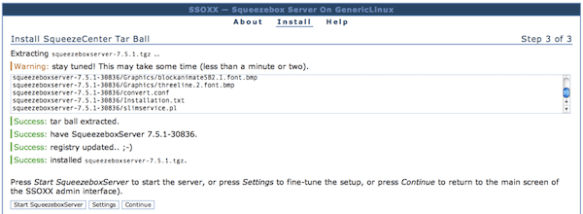
If you are going to use your Joggler as a dedicated Squeezebox Server then you might want to make the following tweaks to ensure that it all starts up automatically and unnecessary processes are disabled:
cd /openpeak/tango
./run &
echo "127.0.0.1 localhost applog.openpeak.net o2.openpeak.com o2.openpeak.co.uk" > /etc/hosts
I want to keep my Joggler in a cupboard and forget all about it, so I have no use for the display.
To save power I switch the screen off entirely, to do this I use Starter’s driver patches:
cd /media
wget http://get.intanet.com/dl/brightness.sh
wget http://get.intanet.com/dl/bp
./brightness.sh allowscreenoff 1
./brightness.sh negativevalues 1
Add the following line to /etc/init.d/boot.d/S99boot.hacks:
/bin/echo "-3">/proc/blctrl"
If you want to mount a Samba/CIFS share (like a NAS mount) you will need to download the cifs.ko kernel module and add that to the startup file.
The starthacks() function in my /etc/init.d/boot.d/S99boot.hacks startup file now looks like this:
starthacks()
{
  # enable telnet
  /usr/sbin/telnetd
  # load CIFS kernel module
  /sbin/insmod /media/cifs.ko
  /bin/sleep 2
  # mount network share
  /bin/mount -t cifs //192.168.1.2/musicshare /mnt/music -o user=music,password=secret
  /bin/sleep 2
  # disable screen
  /bin/echo "-3">/proc/blctrl
  # start SSOXX and Squeezebox Server
  LC_ALL= /opt/ssods4/etc/init.d/rc.ssods start
}
Reboot your Joggler for the display driver patches to load.
 WebDiary.com